


How to use AMP.
What they are, how to create and customize them.
The Accelerated Mobile Pages Project (AMP) is an open-source initiative to improve the performance of web contents and ads through a publishing technology known as AMP.
It is a project launched by Google, specifically targeted at news sites and blogs to facilitate the loading speed of mobile pages.
An AMP version page is a HTML, CSS and Javascript-based page(like the others), but it has restrictions based on rules and specific tags that, by eliminating many elements that "slow down" the site, allows a marked reduction of page weight and loading time.
Why use AMP?
In addition to the explicit advantages in terms of speed of loading, which also correspond to a better ranking in terms of research, it seems that Google has an extra eye on this type of pages by giving them more weight and better SEO ranking.
Learn more here

5. Add key "Publisher"
In the case of AMP, the properties that make sense in context include the specific type of content (i.e. ‘news article’), the headline, the published date, the publisher info and associated preview images.
So, in order to not reporting error in Google Console, the "publisher" properties have to be like the following:
"publisher": {
 "@type": "Organization",
 "name": "Google",
 "logo": {
 "@type": "ImageObject",
 "url": "http://cdn.ampproject.org/logo.jpg",
 "width": 600,
 "height": 60
 }
Currently the VirtualCms fills all fields except for the publisher name.
So, to add the publisher name, you have to:
1. Go in the back panel
2. Open "Configuration Editor" module.
3. Add the key "publisher" and fill the field in this way:
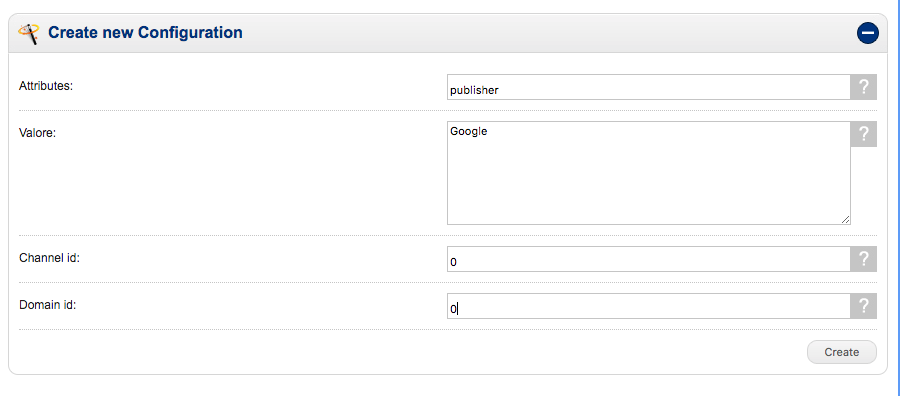
a. attributes name: "publisher"
b. value: the name of the organisation
c. channel id: leave 0 if there is just one channel.
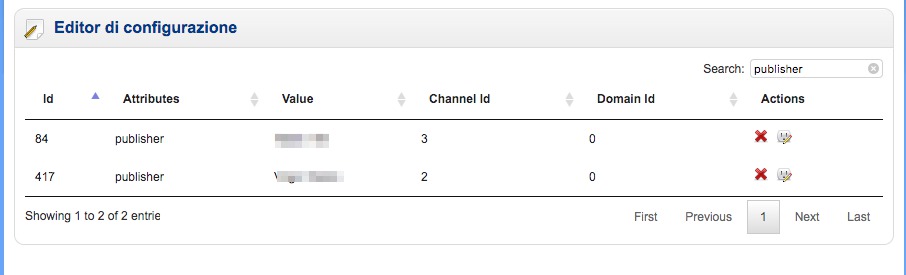
You can also insert a key for each channel of the platform with the channel id to differentiate names
(like in the following screenshot)
The only place where the publisher name is visible to end users is in the search results header on Google, as in the following screenshot: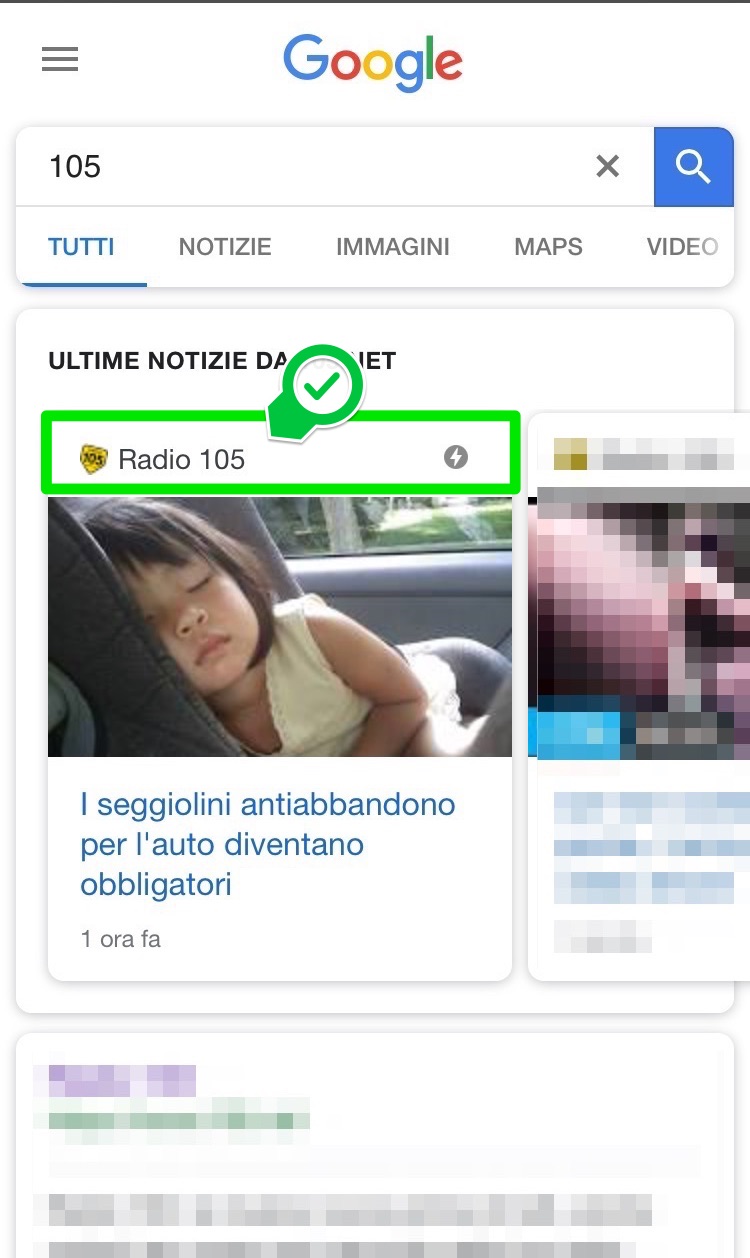
So, make sure you have entered the publisher's name key otherwise Google will not validate the AMP.

25/10/2017
10/08/2018